
XLPack for Matplotlib Installation Manual
1. System requirements
– Windows 10 (22H2 64 bit version) or Windows 11
– Microsoft (Office) 365 or Office (Excel) 2024 (64 bit version)
– Python 3.13 or later (64 bit version)
Before installing this software, update your software to the latest versions.
2. Installing Python
First, make sure that Python 3.13 or later is installed and running properly.
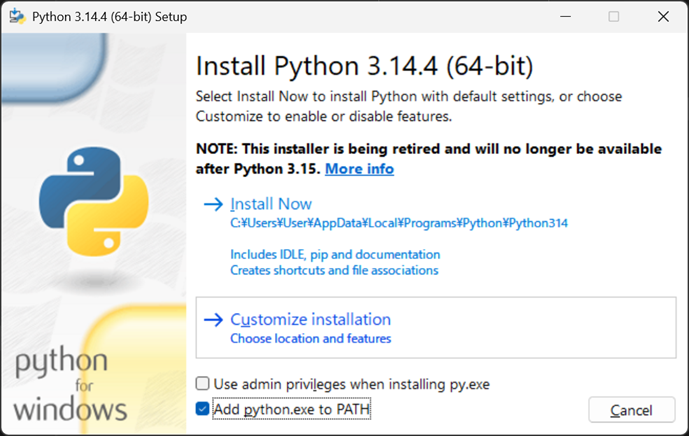
(i) When installing using a standalone installer (e.g. python-3.15.2-amd64.exe)
When installing Python, be sure to check the option “Add python.exe to PATH.”
(ii) When installing using Python Install Manager
You need to set the environment variable manually. First, use the following command to check where Python is installed.
D:\>py -c "import sys; print(sys.executable)"
C:\Users\user-name\AppData\Local\Python\pythoncore-3.15-64\python.exe <- output
Next, add the folder path excluding "python.exe", for example, "C:\Users\user-name\AppData\Local\Python\pythoncore-3.15-64", to your environment variable by following the steps below.
- Search for "Edit the system environment variables" using the search box on the taskbar.
- Click "Environment Variables"
- Under "User variables", select "Path" and click "Edit."
- Click "New" and add the folder path.
3. Installing Numpy and Matplotlib
Once the Python installation is complete, you need to install Numpy and Matplotlib, for example by using the "py -m pip" command. Furthermore, Scipy is also required for Spy_Csc and Spy_Csr. To save animations as video files, ffmpeg or similar software is required.
4. Installing XLPack for Matplotlib
Right-click the installation program (XLPack_MPL_x.y.z.exe), select "Run as administrator" to launch it, and then follow the on-screen prompts. The installation is performed on a "per-machine" basis.
5. Setting up your Excel
After installation of the software, you need to set up the Excel.
5.1 References setting
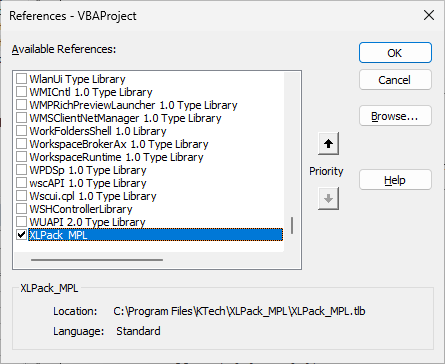
Open Excel file and run Visual Basic editor by clicking "Visual Basic" button in "Developer" tab. Select "Tools" -> "References" and check "XLPack_PY". The reference settings apply only to the Excel file in which they are configured.
Note - If you cannot find the "Developer" tab, select "File" tab -> "Options" -> "Customize Ribbon" and check "Developer".
Note - You need to configure the reference settings for each Excel file that uses XLPack for Matplotlib. Since the reference settings are saved within the Excel file, you do not need to configure them again the next time you open it.
6. Uninstalling XLPack for Matplotlib
To uninstall XLPack for Matplotlib, use "Settings" -> "Apps" > "Apps & features". Choose "XLPack for Matplotlib" and click "Uninstall".


